Account · HarborPilot
Trial and license
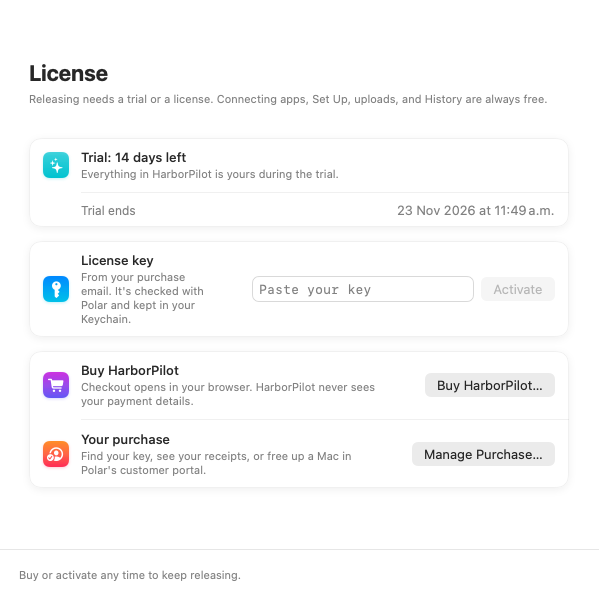
HarborPilot has no account. You try it for 14 days on your Mac, and a license key from your purchase keeps it releasing after that. This guide explains what needs a license, how to start the trial and activate a key, and what to do when HarborPilot says your license needs attention.
By Francisco Cantu ·
What's free and what isn't
Connecting apps, Set Up, uploads, Update Feed, History, and Settings always work. Starting a new release is the one thing that needs an active trial or license. Retrying, resuming, and waiting for Apple never ask again.
Starting the trial
The trial starts only when you choose it: 14 days of every feature, on this Mac, with no account or payment. Start it from any of these:
- The 14-day trial available button in the main window's toolbar.
- Build & Release on any app, which asks first if there's no trial or license yet.
- Settings → License → Start 14-Day Trial.
While it runs, the toolbar shows Trial · N days left. Each Mac gets one trial.
Activating your license
After you buy, your license key arrives in your purchase email. Paste it in Settings → License (or the sheet Build & Release shows) and click Activate.
HarborPilot checks the key with Polar, which handles checkout, and keeps it in your Keychain. The activation is labeled “HarborPilot on this Mac”; nothing identifying your Mac's hardware is sent. Activating ends the trial for good.
Manage Purchase… opens Polar's customer portal, where you can find your key, see receipts, and free up a Mac.
Working offline
HarborPilot rechecks your license with Polar about once a day, at launch and when you release. If Polar can't be reached, a license that was checked before keeps working for 14 days from that check, and Settings shows Offline.
A license has to be checked online once before it works, so activate it while you're connected.
Moving to another Mac
On the Mac you're leaving, click Settings → License → Deactivate This Mac…. Your apps, history, and release files don't change. Then activate the same key on the new Mac.
If you can't reach the old Mac, free its activation with Manage Purchase…. See moving to a new Mac for bringing your apps and keys too.
When your license needs attention
- No activations left: the license is active on as many Macs as it allows. Deactivate one in the customer portal, then try again.
- Can't check your license: Polar has been unreachable for longer than the 14-day grace period. Connect and click Check Again.
- License not recognized: the key isn't a HarborPilot license. Check you pasted the key from your HarborPilot purchase email.
- Activation not found: Polar no longer recognizes this Mac's activation, for example after it was freed in the portal. Deactivate this Mac, then activate it again.
- License revoked, turned off, or expired: Polar says the license no longer works. Use Manage Purchase…, or contact support.
- Trial ended: buy HarborPilot or enter your key to keep releasing. Your apps and history are kept.

Simplify your next release with HarborPilot.
One license covers every app and every release. If anything about your purchase looks wrong, email us from the Help page and include the last characters of your key, never the whole thing.
Sources and further reading
Service limits and Apple requirements can change. Check the linked documentation before publishing. HarborPilot is not affiliated with Apple, Cloudflare, or the Sparkle project.