Keys and Macs · HarborPilot
Your update key, and moving to a new Mac
Every update you ship is signed with your app's update key, and every copy of your app checks that signature before it installs anything. Lose the key and people who already have your app can't get another update. This guide covers keeping it safe, getting it back, and moving everything to a new Mac.
By Francisco Cantu ·
What the update key is
Sparkle signs each update with a private key, and your app carries the matching public key in its Info.plist as SUPublicEDKey. An update signed with any other key is refused.
HarborPilot keeps the private key in your login Keychain, one per app, and never puts it in a file unless you ask for a backup. Settings → Update Keys lists the keys it uses.
Back it up
Set Up asks you to Save a backup of your update key right after it makes one. If you skipped that, or your app's key predates HarborPilot, make one now:
- Settings → Update Keys → Back Up… for any app's key, or
- App Settings → Signing → Back Up… for one app.
The backup is a small text file named like Tidemark Update Key Backup.txt. Anyone with it can sign updates your users will install, so store it in your password manager and delete any other copies.
When the key is missing
If no key in your Keychain matches your app's public key, your app's home says so: “Tidemark's update key isn't on this Mac”. A release that reaches that point stops with “Tidemark's update key isn't in your Keychain”.
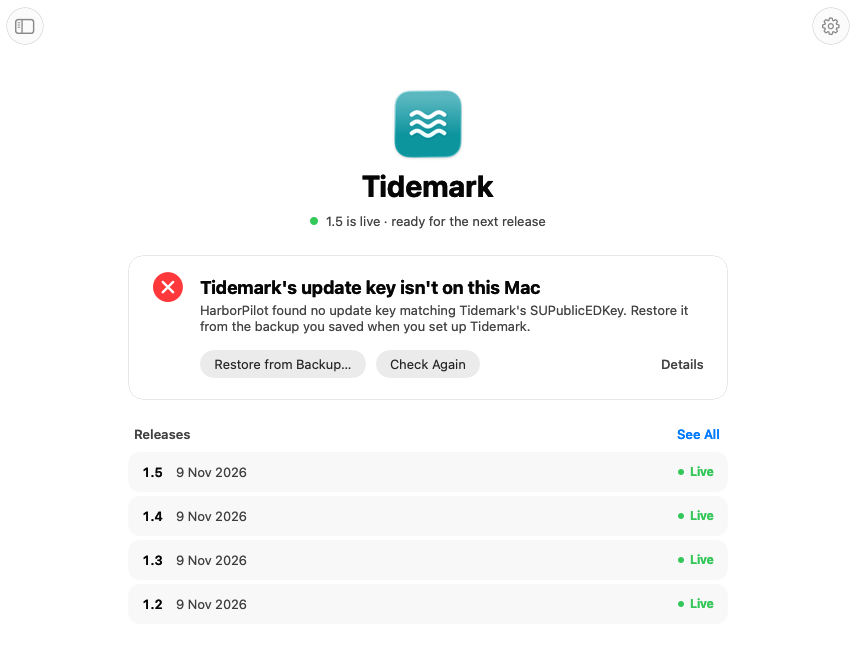
Click Restore from Backup… and choose your backup file. HarborPilot checks that it's the key your app trusts before adding it; a different key is refused, and nothing changes. It never overwrites a key already in your Keychain. A release that stopped for the key carries on by itself.
If you restored the key another way, click Check Again.
No backup anywhere? Check your password manager, old Macs, and Time Machine backups of your Keychain first. Without the key, copies already installed can't verify a new update; Sparkle's documentation explains what that leaves you.
Moving to a new Mac
HarborPilot keeps your apps' data on your Mac, so moving means bringing four things across. Do them in this order:
- Your history. On the old Mac, choose File → Export History… (also in Settings → Advanced). The file holds each app's settings, tracks, imported feed, and release records. It doesn't hold keys, the notarization key, or release files.
- Import it on the new Mac with File → Import History…. New apps are added, and apps already there only get the releases they're missing; nothing on the new Mac is overwritten.
- Your update keys. Each app shows “… update key isn't on this Mac” until you click Restore from Backup… with its backup.
- Your projects. If a project isn't at the same path on the new Mac, its home offers Locate Project…. HarborPilot only accepts a project that builds the same app.
Finish any release that's waiting for upload on the old Mac first. A release that was built but not uploaded can't be uploaded from the new Mac, because its files stay on the old one; cancel it and release again instead.
Your notarization key
The App Store Connect API key isn't in the history file. On the new Mac, open Settings → Signing & Notarization and click Set Up… next to Apple notarization, then add the same .p8 file with its Key ID and Issuer ID.
Apple only lets you download a .p8 once. If you don't have it, create a new key in App Store Connect; notarization works with any valid key for your team.
Your license
On the old Mac, open Settings → License and click Deactivate This Mac…. Your apps, history, and release files stay. On the new Mac, paste your license key and click Activate.
If the old Mac is gone, use Manage Purchase… to free it in Polar's customer portal. More in trial and license.

Simplify your next release with HarborPilot.
With the key backed up and your history exported, a new Mac is ready to release in a few minutes, and your users never notice.
Sources and further reading
Service limits and Apple requirements can change. Check the linked documentation before publishing. HarborPilot is not affiliated with Apple, Cloudflare, or the Sparkle project.