Releasing · HarborPilot
Shipping your next update with HarborPilot
Once an app is set up, every release in HarborPilot is the same short routine: write what's new, click one button, and upload. This guide follows Tidemark, the sample app from the getting-started guide, from 1.0 to 1.1.
By Francisco Cantu ·
Before you start
- Your app is connected and set up in HarborPilot. If it isn't yet, start with Getting started: ship a new Mac app with HarborPilot.
- Your trial is running, or your license is active. Starting a new release is the only thing that needs one.
- Your changes are committed. HarborPilot builds what's in your project folder and records the branch and commit with the release.
1. Click Build & Release
Select your app in the sidebar. Its home shows the version that's live and suggests the next one. Tidemark 1.0 is live, so the button offers 1.1.
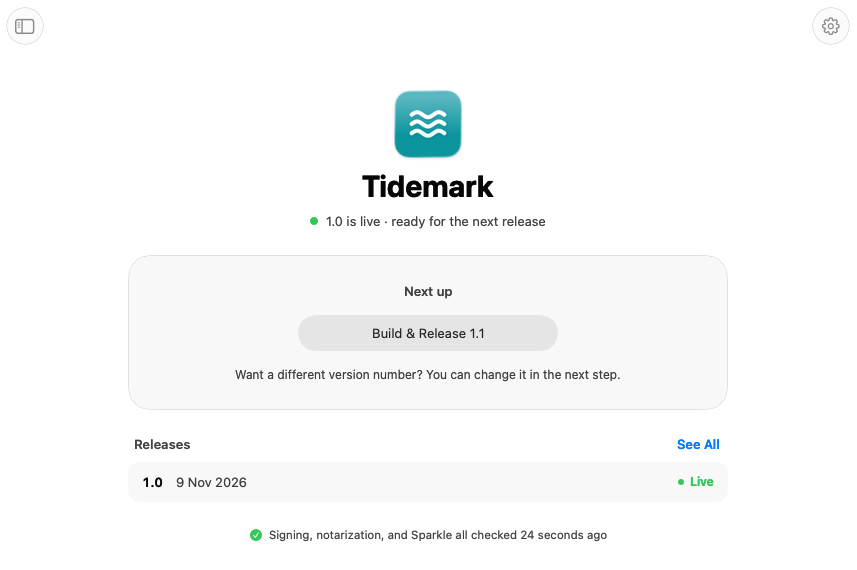
The line at the bottom shows when HarborPilot last checked your signing, notarization, and Sparkle setup. It checks them again at the start of every release, and if something needs attention, your app's home says what happened and how to fix it.
2. Write what's new
Click Build & Release 1.1 and write the release notes. Plain text and Markdown both work; Markdown needs Sparkle 2.9 or later in your app. Click See how it looks to your users to preview what Sparkle's update window will show.
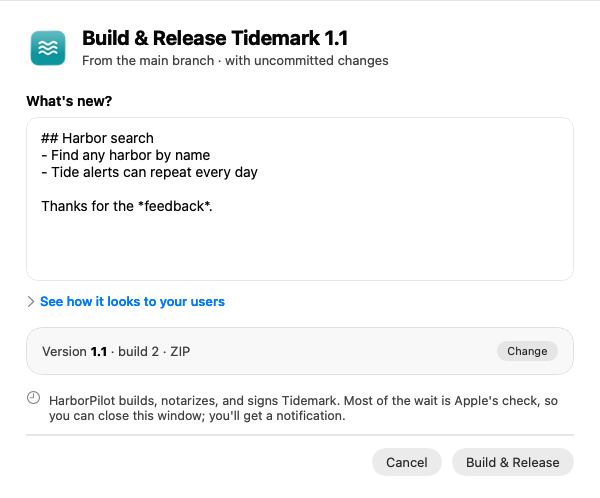
The line under the title shows the git branch you're releasing from, and warns if there are uncommitted changes. If that's not what you meant to ship, cancel, commit in Xcode, and come back.
3. Check the version
HarborPilot suggests the next version and raises the build number by one. To use a different version, click Change and pick Bug fix, New features, Major, or Other… to type your own.
You can type a build number too, but it must be higher than every build already in your feed. Each app has one series of build numbers, so Sparkle always sees the newest release as newer.
Then click Build & Release.
4. Let Apple check it
HarborPilot writes the version into your project, archives and exports the app with your Developer ID, checks the exported app, and sends it to Apple.
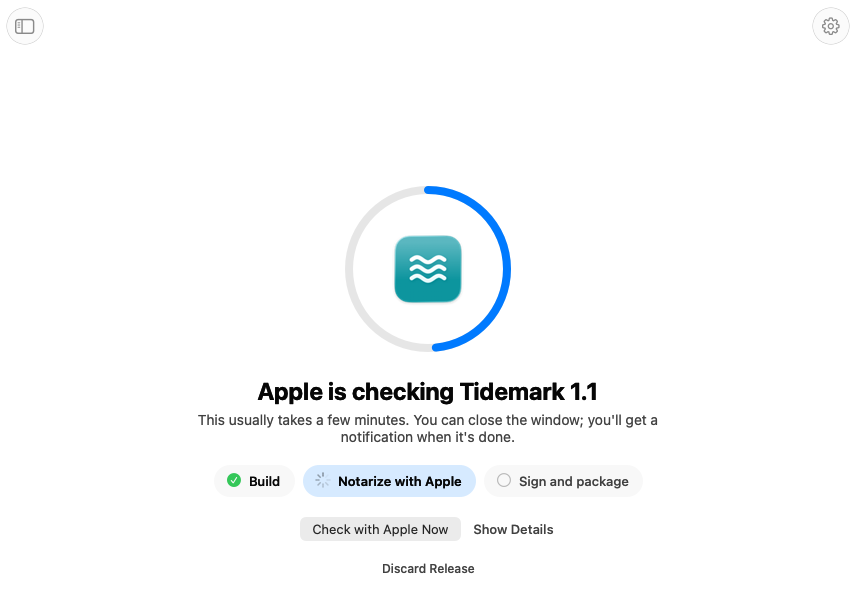
Most of the wait is Apple's check. Close the window if you like; you'll get a notification when it's done. If you quit HarborPilot, the release picks up where it left off, with the same Apple submission. When Apple accepts it, HarborPilot staples the ticket, signs the update for Sparkle, and writes the new feed.
If Apple rejects it, the notarization errors guide explains how to read Apple's log.
5. Upload and check it's live
If your app uploads to Cloudflare or FTP, there's nothing to do: HarborPilot uploads the archive first and the feed last, then checks the files are live at your address.
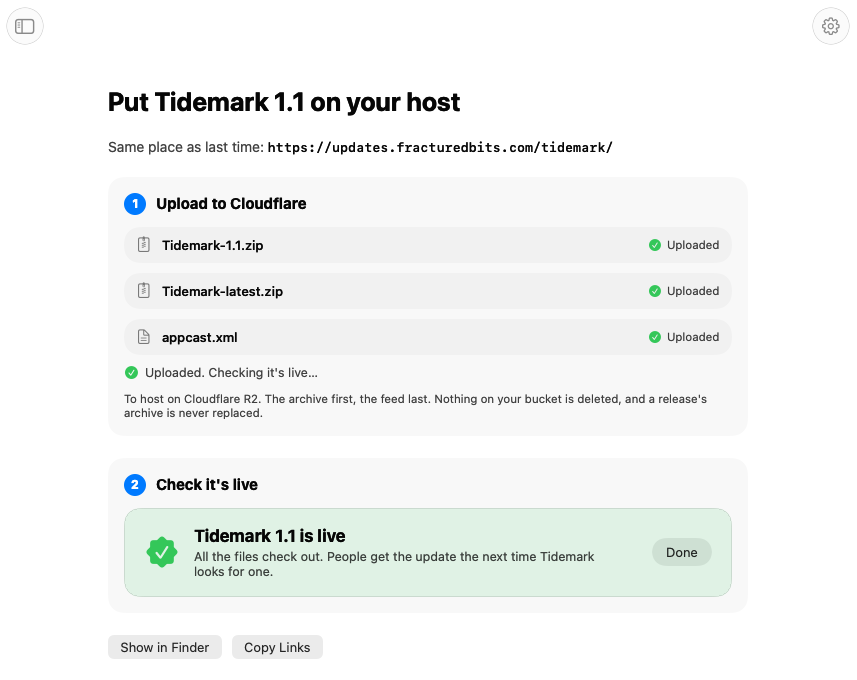
Otherwise, click Upload Files and drag the three files to the same folder as last time: Tidemark-1.1.zip, Tidemark-latest.zip, and appcast.xml last. Then click I've Uploaded Them. Check. The getting-started guide walks through this step in detail.
The new feed lists every release that's live plus this one, and Tidemark-latest.zip replaces the old copy, so your website's download link now gets 1.1. People running 1.0 get the update the next time Tidemark checks.
6. Fix notes later in History
Click See All on your app's home to open its History: every release, its notes, and its files.
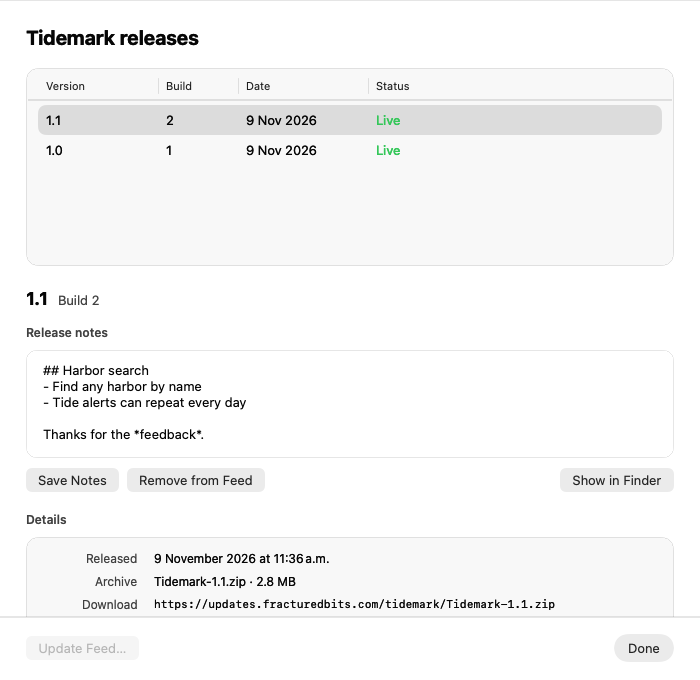
Spotted a typo in the notes? Edit them and click Save Notes, then Update Feed… to stage a fresh appcast.xml. With Cloudflare or FTP, HarborPilot uploads it for you; otherwise, upload it to the same folder. Remove from Feed takes a release out of the feed, for example a build you don't want anyone to install, and also asks for an Update Feed.
If you can't upload right away
- Upload Later keeps the release waiting on your app's home, with Upload Files ready when you are. Nothing goes live until you upload it.
- Cancel Release drops a release you haven't uploaded, so you can fix something and start again.
- Testing with a smaller group first? Add a Beta track in App Settings → Build → Add Track…. Each release then asks which track it's for, and build numbers stay one series across tracks. See shipping betas with release tracks.

Simplify your next release with HarborPilot.
Tidemark went from 1.0 to 1.1 with release notes and one button. Every update after this works the same way, and HarborPilot checks the setup before each one.
Sources and further reading
Service limits and Apple requirements can change. Check the linked documentation before publishing. HarborPilot is not affiliated with Apple, Cloudflare, or the Sparkle project.